Categories

Social Media Exchange Website - Likenation

Saturday, May 3, 2014

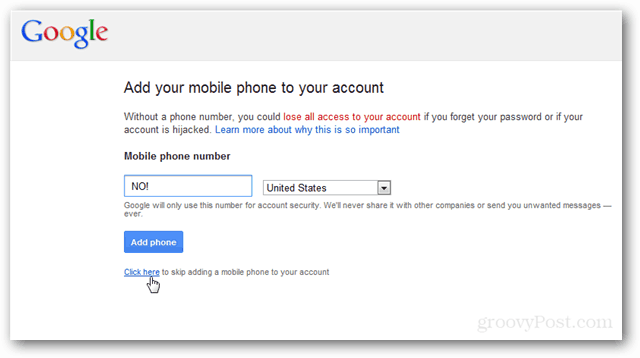
Why is Google asking for my phone number?

On rare occasions Google may ask you to provide your phone number to regain access to your account.
Image from  http://cdn4.groovypost.com/wp-content/uploads/2012/05/image51.png


I am being asked to provide a phone number to get back into my account, is this legit?

If you logged in and were taken to a special web page that asks for your phone number then yes, this is a legitimate Google site. You will need to provide a phone number in order to continue.

Why does Google ask for this?

It is an anti-spam system. Here's how it works. 

Each phone number can be used to re-activate accounts a small number of times before it won't be accepted anymore, and each Gmail account can send to a limited number of recipients every day. 

Because most people don't buy things from spammers, they need to work with lots of accounts in order to send enough email to make money. If we think an account might be being used by a spammer, we lock it until the owner provides a phone number. So, spammers need to have access to a large quantity of phone numbers to unlock all their accounts. This is very expensive for them but pretty easy for most regular people. In most cases it is expensive enough for the spammer that it becomes unprofitable for them to spam, so they give up.

I am not a spammer. Why am I being required to provide a phone number?

Your account was probably compromised and used to send spam. When we detect this we send the account to phone verification. This is to lock out the spammers until you have the opportunity to sign in to your account and change the password. We have to do this because it may be days or even weeks until you next check your mail, and it's likely spammers will try to repeatedly abuse your account during that time.

What will Google use my phone number for?

We will send you a number that you have to type into the web page. After that it won't be used for anything else. In particular it will never be used for marketing things to you.

I don't want to provide my phone number, that's personal.

You can provide any phone number that has not been "used up". It does not have to be your own. Even payphones can work.

I don't want to provide any phone number at all.

You can follow the instructions on the verification page to contact support. However it may take us some time to get to your ticket, as these cases are lower priority than people who have been genuinely locked out without any way back in. We strongly encourage you to go through the phone verification process - many people have already done it, and we keep the numbers used private.
The code never arrived.

In some parts of the world SMS is not completely reliable. If the code never arrives, try logging in again and using the phone call option instead.

Friday, April 18, 2014

Are you over 18 but can't view age-restricted videos in the YouTube iOS app?


Hey everyone,

In order to view age-restricted videos, it’s a good idea to verify your age associated with your Google account. You can follow these steps to check your birthday:

  1. Sign into Google+ on the desktop.
  2. In the left nav bar, hover over Home and click Profile.
  3. At the top, click the About tab.
  4. Click Edit in the Basic Information section.
  5. Verify your birthday and update if necessary.
  6. Click Save.

Once you verify your age, sign out of the YouTube iOS app and sign back in. You should now be able to watch age-restricted videos. If your birthday is listed as over 18 years of age on your profile, please check back in a few days (The team is aware of this issue and looking into solutions).

This does not impact accounts belonging to users who have told us they are minors. Learn more about age requirements on Google's accounts.

Thanks,

Easy Steps For Making HDR Image

Hello friends..... after long time of period I am back in here. Today I'm going to present the Photoshop tutorial with video..

Easy Steps For Making HDR Image


1 Open Photoshop and open image you want to make HDR

3 Then make 3 copy of that image using Ctrl+J

4 Hide the layer1 copy and select layer1

Then do the following steps....

5 Now pres Ctrl+Shift+U image will Desaturated

6 Then press Ctrl+I for the inverse

7 Then goto Filter>Bular>Gaussian Bular and adaust the radious

8 Then seleset blending mode for the layer as Overaly

9 Now select the layer1 coppy and make as visibale it

10 Select blending mode as Overaly

11 Then go Filter >> Other>> High Pass and select suitable radious

12 Now finshed the edditing if you want you can reduse the opticaly of layer1 coppy

Thank you for being with us!!!

Monday, January 27, 2014

Easy Way To Increase Youtube Subscribers

I have found two methods for the increase youtube subscribers.. 

Method 1

If you provide your youtube channel link any where, give it as like this link..

http://www.youtube.com/subscription_center?add_user=yourusername
(only change blue color)

For an example click here 

you can see the channel like this picture..


If you have any question Click here


Method 2

We can increase subscribers using this wonderful web site click here to go to the website.
They have give the chance fore free users also, so I think easy way is this web site..


Thursday, January 23, 2014

Solving Matrix Using Calculator (Casio fx991ES PLUS)

Hi friends after very long time I’m in here, today I’m trying to teach how to solve matrix using Calculator (Casio fx991ES PLUS). I have made a video tutorial for it. You can watch it below….


Here also I included some part.

For the tutorial consider this two matrix 


First we have to change the setup to matrix mode.
Press the mode button  Then calculator will like this.

 For the matrix press the number 6 button. Then calculator display will appear like this 


Now press AC button, then press Shift button


 Now press number 4 button for the matrix

Then press number1 for give the dimension and name for the matrix.


Select the suitable dimension for your matrix


Watch the video for other steps. 
Thank you!!